Move the client archive to another location
The command line tells the program where to find the vdClientArchive directory.
- Right-click on the shortcut of a client on the desktop and select Properties.
-
The Properties of the client dialog will open.
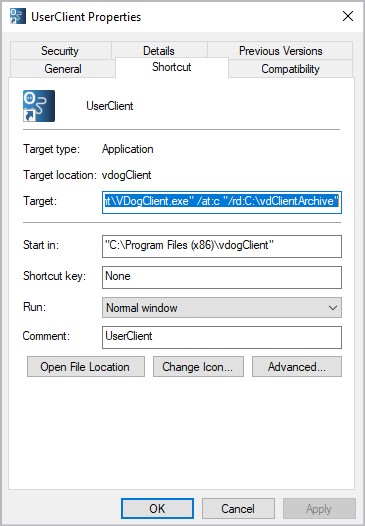
-
In the Target tab navigate to the specified path to the
vdClientArchivedirectory (the/rd:argument). - Rename the path and select Apply.
- Restart the client.
FAQ
Changing the storage location of the client archive
To change the client archive directory later, proceed as follows:
- Close all Octoplant applications.
- Copy the client archive to the desired location (for example,
E:\vdClientArchive). -
Enter the desired storage location, for example
D:\Programme\vdogClient\VDogClient.exe" /at:C" /rd:E:\vdClientArchiveas Target in the Properties for all Octoplant shortcuts (right-click -> Properties -> Link tab -> Target field). -
Sign in to a client application as usual. The system now uses the new client archive location.
Unique client archive for each user on a shared system
Only one client can use a client archive at a time. Each client needs its own client archive with exclusive access. If multiple users work in parallel from a single client installation, each user needs a separate client archive.
To adapt the properties of the Octoplant clients, proceed as follows:
- Install the Octoplant client applications.
-
Right-click the Octoplant client applications: UserClient, EasyClient, AdminClient, ReportClient.
-
Select Properties in the application window.
- In the Link tab, adjust the directory, for example:
C:\Program files\vdogClient\VDogClient.exe" /at:C" /rd:%USERPROFILE%\vdClientArchive
For systems such as Citrix, all other links of the Octoplant client applications on the terminal server must also be changed. To do this, go to C:Users\Public\Public Desktop on the terminal server and adjust all Octoplant shortcuts.
Using Octoplant on a terminal server
You can use Octoplant on a terminal server.
To be able to use Octoplant on a terminal server, the shortcuts of the client applications UserClient, AdminClient, ReportClient must be adapted:
- Right-click the shortcut of a Octoplant client.
- Select the Properties entry.
-
In the Shortcut tab, adjust the directory, example:
C:\Programme\vdogClient\VDogClient.exe /at:c" /rd:%USERPROFILE%\vdClientArchive" -
On the terminal server, adjust the Octoplant clients shortcuts accordingly. To do this, go to
C:\Users\Public\Public Desktopin the terminal server and adjust all Octoplant shortcuts as explained above.