Create a new version and check in the component
-
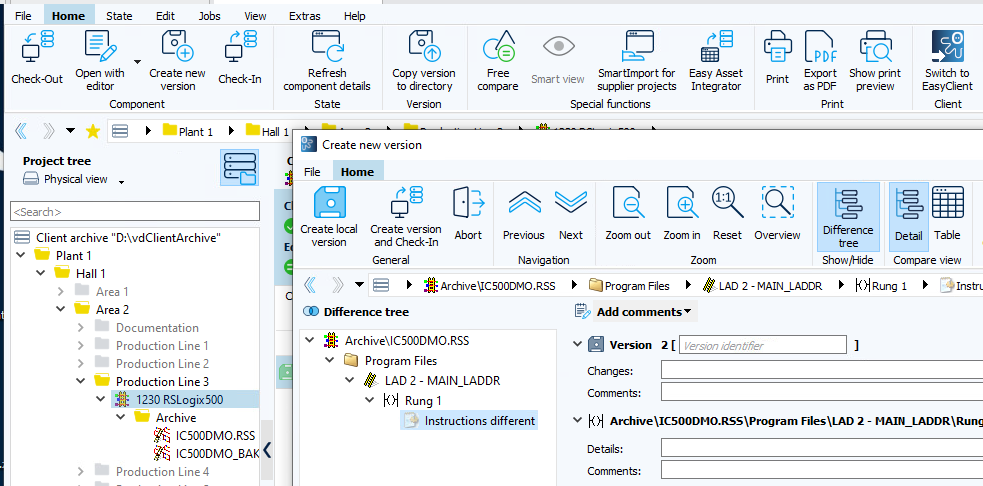
In the Project tree, select the component you want to edit.
-
On the Home tab in the menu bar, select Create new version.
-
If you have not made any changes, a message appears stating that no differences were found during the comparison. In this case, versioning is only possible if you select Version without difference on the Extras tab in the menu bar.
-
If changes are detected, the Create new version dialog opens. To review the differences, use the Difference tree or navigate using the Next and Previous buttons.
-
-
Under Add comments, enter a description of your changes.
Scenario A: Connection to the server is available
-
In the Create new version dialog, select Create version and Check-In.
The Check-In process completes automatically without any further action.
Scenario B: No connection to the server
-
In the Create new version dialog, select Create local version.
The new version is created locally. Because there is no server connection, a Check-In is not possible at this time.
You can create multiple local versions without checking them in.
When a server connection is available
- In the Project tree, select the component containing the newly created version.
-
On the Home tab in the menu bar, select Check-In.
The Check-In dialog opens with the preselected component.
-
Select Check-In.
After completion, a pop-up confirms the successful Check-In.
The display of this pop-up can be configured in the Client settings dialog.
FAQ
Error message during Check-In
If an error message [Name: GetDiskFreeSpaceEx] [Info:{directory}][NOTE:Access denied] appears during Check-In, contact your system administrator. Ask them to check whether you have write access to the vdServerArchive folder or to the remote share.
Can I shorten the versioning process?
Yes. During versioning, Octoplant creates ZIP archives. To reduce the time needed for versioning, select a lower compression factor.
A lower compression factor creates ZIP archives faster, but they require more storage space.
Results of the test series:
| Amount of data [MB] | Compression factor | Duration of creating a new version [s] |
|---|---|---|
| 1000 | 0 | 125 |
| 1000 | 9 | 151 |
| 2000 | 0 | 242 |
| 2000 | 9 | 318 |
| 3000 | 0 | 300 |
| 3000 | 9 | 488 |
The compression factor is defined via the component type. To change the compression factor for a component type:
- Start the AdminClient.
- Open the Component type editor module.
- Select a component type in the Component type library.
- Navigate to the Settings for saving area.
- From Compression factor dropdown menu, select the desired value.
Related topics