Compare versions
Octoplant can create side-by-side comparisons that show the differences clearly. You can compare the following:
- Any version with the working directory
- Any version with another version
Compare version with working directory
-
Select a component in the Project tree.
If you want to compare versions, you must first check them out (see Check-Out).
-
Select a version in the Change history tab.
- Select the Compare with working directory button in the State tab in the menu bar.
- In the Comparison dialog, view the differences.
Compare version with another version
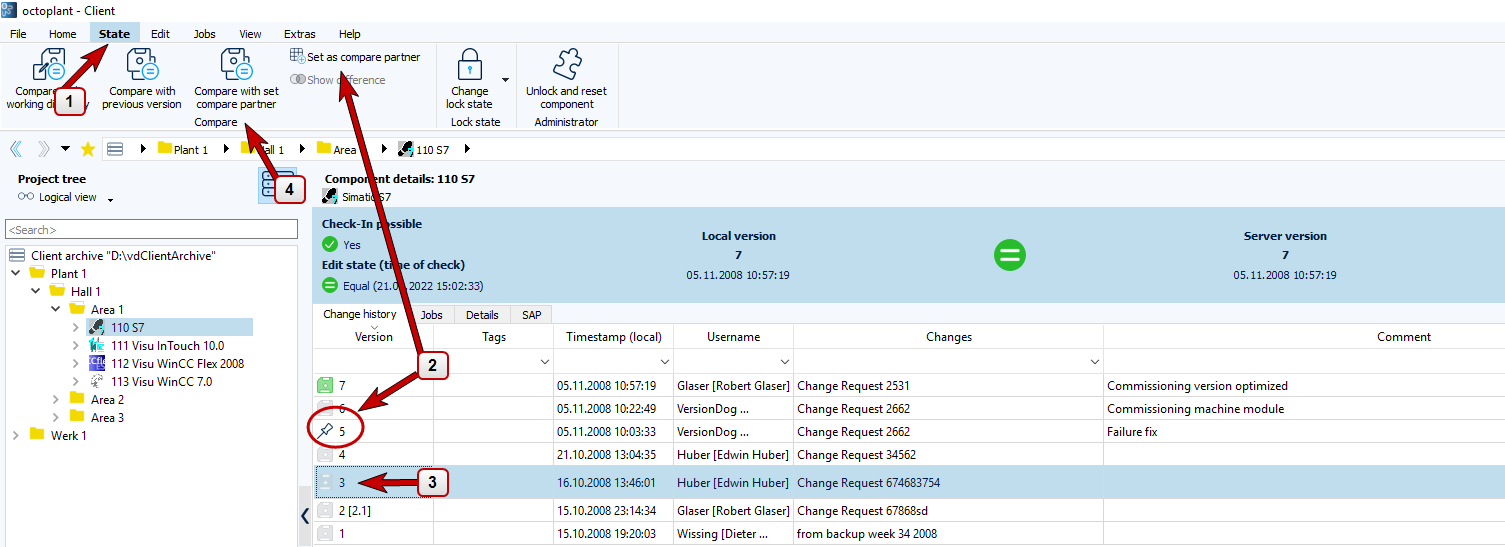
- Select a component in the Project tree.
- Select a version in the Change history tab as the compare partner.
-
Select Set as compare partner in the State tab in the menu bar.
The component is displayed pinned (version 5 in the example above).
-
Select the version you want to compare with the set comparison partner (version 3 in the example above).
- Select Compare with set compare partner.
- In the Comparison dialog, view the differences.
Print the differences or export them to PDF
- Open the Comparison dialog.
-
Select the differences you want to print or export in the Differences area.
To print multiple differences, press Ctrl while selecting them. To print all differences, select the root project in the Difference tree and then press Ctrl+A.
-
Select the File tab in the menu bar.
- Select Show print preview.
- In the Print differences dialog, select whether you want to print a summary or the details of the comparison and confirm with OK.
- In the menu bar under Print, select the option to print or export to PDF.
FAQ
How can I change the maximum number of differences that appear?
After you compare versions, Octoplant shows the differences. The system sets the maximum number of differences by default.
-
Navigate to AdminClient > INI files >
Server.ini(path to archive:{Drive}:\vdServerArchive\VD$A\Configuration\Server.ini) -
Add the following section (or edit the value if the section exists):
(Where N is the maximum number of differences; default value: 512, minimum value: 64, maximum value: 16384)
I receive an error message when I try to print from the UserClient.
If you receive this error message No installed printer was found in the system when printing from Octoplant, it may be because the file windowsprintersupport.dll is missing in the client's installation directory. The file windowsprintersupport.dll can be found in the Octoplant setup in the bin\client\printsupport directory. Copy the file manually into the C:\Program Files (x86)\vdogClient\printsupport directory.
Related topics