Display jobs
-
Select the required component in the Project tree.
Info
If at least one job for the selected component has been executed at least once, the Jobs tab is highlighted in yellow in the menu bar.
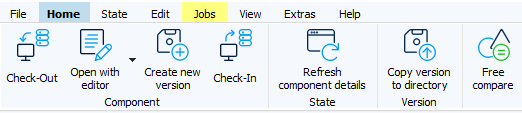
-
The yellow background does not necessarily indicate that a backup is available. The tab is also highlighted if an error occurred during the last job execution.
- The yellow highlighting is removed as soon as the Jobs tab is opened.
-
Select the Jobs tab either in the menu bar or in the Component details area.
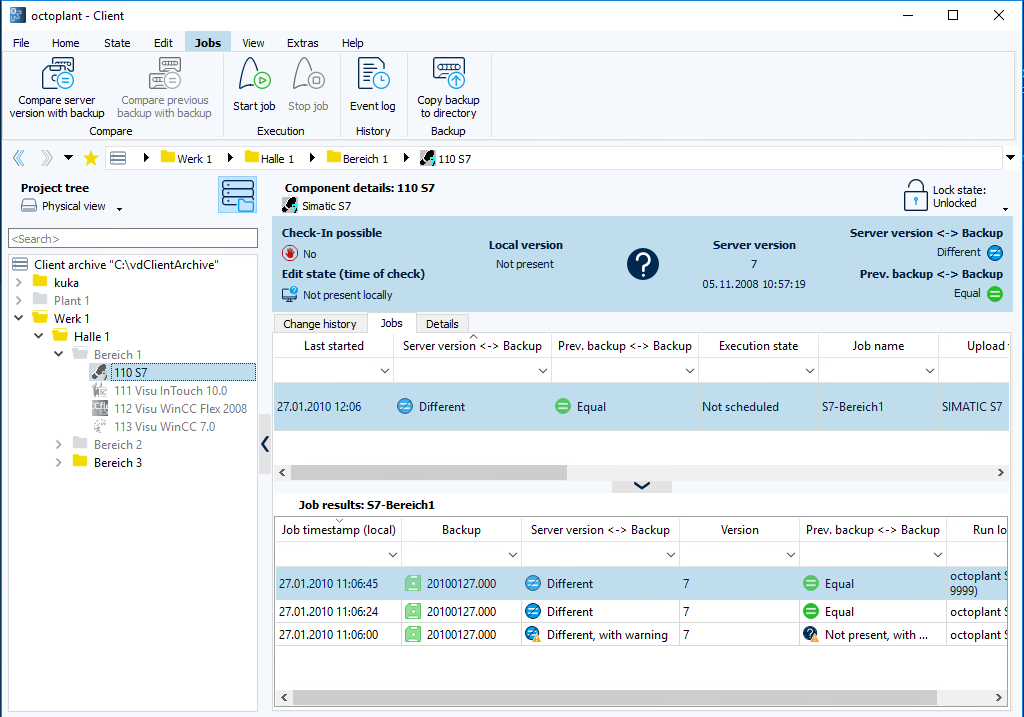
The two tabs are linked to each other. If one tab is selected, the other is automatically activated.
Job details for the selected component are displayed in the Component details area.
Related topics