Copy a backup to a directory
Job results can be copied to a directory and used, for example, for disaster recovery.
- In the Project tree, select the component that contains the backup you want to copy.
- In the Component details area, open the Jobs tab.
- In the Job results area, right‑click the backup and select Copy backup to directory.
-
In the Copy backup to directory dialog, specify a Target directory and select Next.
-
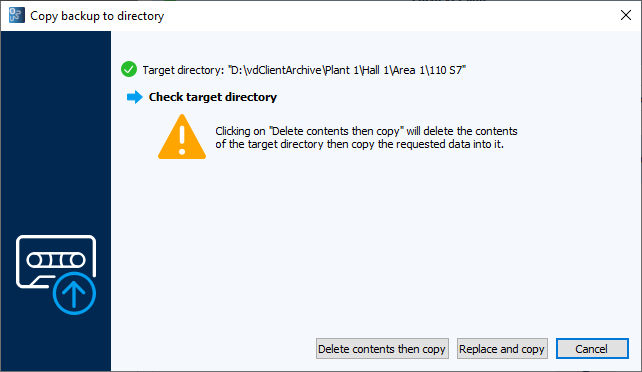
Choose one of the following options:
-
Delete contents then copy
Deletes existing files in the target directory before copying all backup files.
-
Replace and copy
Replaces files with the same name and copies files that do not yet exist.
Info
The behavior of these options depends on the device type. For details, see the relevant documentation under Device and software support.
-
Select Exit to cancel the process.
-
-
In the Successfully copied dialog, optionally enable Show target directory in file manager and select Close.
The backup files are now available in the selected directory and can be used for restoration.