WebClient
The WebClient enables you to monitor and manage components, versions, and jobs on the Octoplant server. This offers you a convenient, streamlined alternative when you do not require the advanced functionality of the UserClient.
You can also download versions of the components to your local computer, but without the option to upload them back to the server.
Refreshing the browser may cause logout
Using the browser Refresh button or F5 can result in logout and data loss. Instead, select a different component in the Project tree and then reselect the updated component.
Bookmark WebClient after login
When you open the WebClient for the first time, the URL uses port 64023. After you log in, the port changes to 8443.
If you bookmark the URL before logging in, the bookmark saves the URL with port 64023. When you later use the bookmark and log in, the following error appears: Access denied.
To avoid this issue, log in to the WebClient at least once before you save the bookmark.
The user interface
The WebClient interface contains the two areas:
-
Project tree
The Project tree maps the Octoplant component structure similar to the file manager.
-
Component overview
If a component is selected, details about the component are displayed here.
-
Change history
Available versions of the selected component
-
Jobs
Available jobs and job results for this component
-
Details
Component ID and component type ID
Master data of the selected component
-
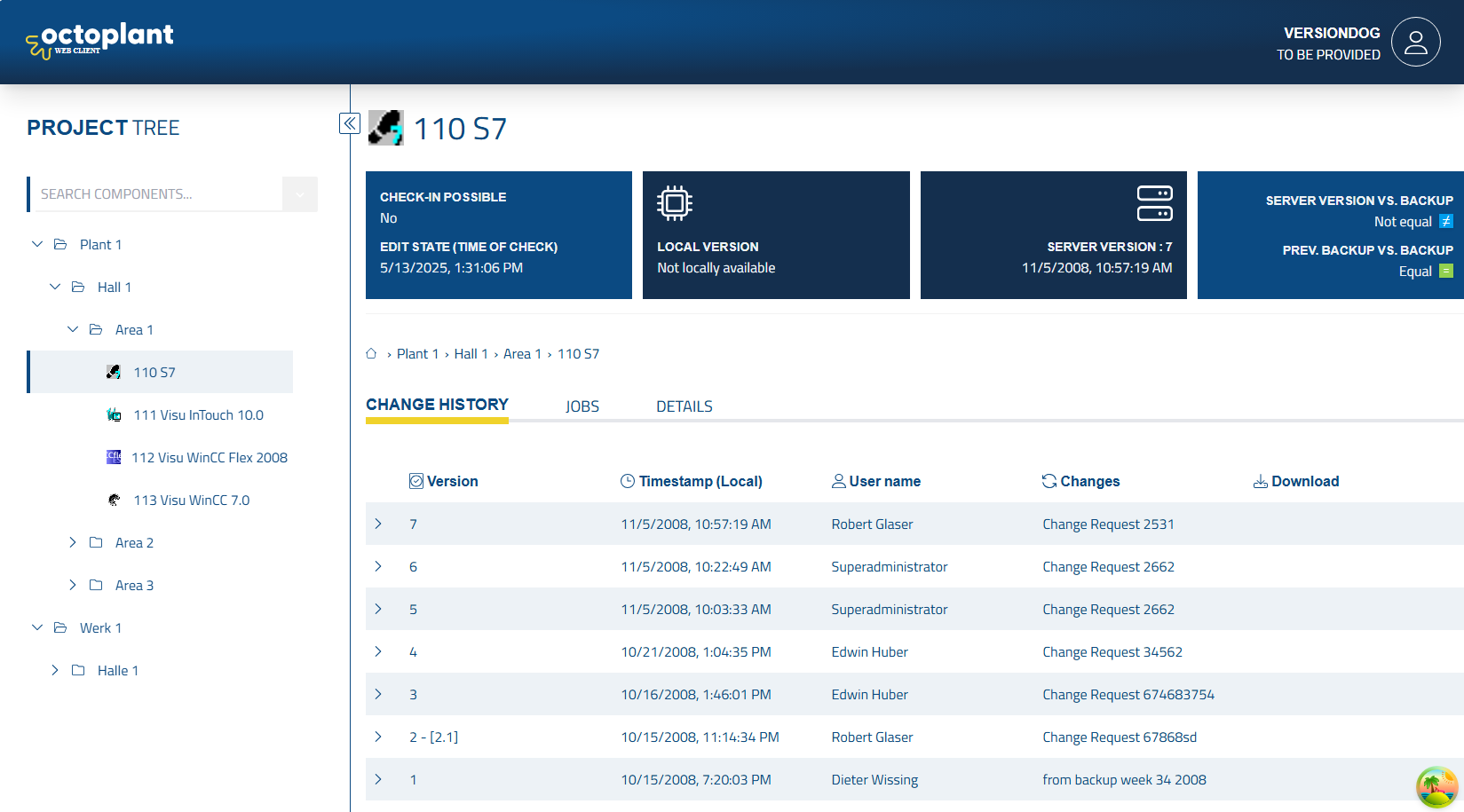
The four tiles in the upper part of the component overview display at a glance:
-
A summary of the component state (if Check-In is possible, the edit state and the time of Check-In). During Check-In, changes that are made locally are copied to the Octoplant server.
A Check-In is only possible if the component is first checked out. The same applies to the edit state: The contents of a component can only be edited if the component is available locally, i.e. has been checked out. Components cannot be checked-in via the WebClient, only via the UserClient.
-
The number of the latest local version
It is possible to create a local version in the UserClient, that is not checked-in to the server. This is why the local version can differ from the latest version on the server.
-
The number of the latest version on the server
- The comparison results of the last job execution
User configuration
The User Configuration settings allow you to personalize your WebClient experience.
Language settings
When you select the user configuration icon, you can change the language of the WebClient interface:
- English — Display all interface text in English
- German — Display all interface text in German
The selected language preference is saved with your user profile and will be applied automatically when you access the WebClient again regardless of your browser language settings.
Related topics