Siemens TIA Portal comparisons
From TIA Portal V15.1 and Octoplant 101.3.0, the native comparison process for projects takes place in Octoplant and does not require the TIA Portal editor. There is no autonomous fallback mechanism, however, you can add an INI entry to the AgentStation.ini file to force the old comparison process to execute when the native comparison does not work.
Read data directly from TIA Portal
If TIA Portal is installed on the same device on which the comparison or job configuration is carried out, it is possible to read out project information for selecting the PLC to be saved directly via the TIA Portal.
To do this, add the following entry to the Compare/AgentStation.ini file:
Info
Note that this can lead to longer loading times for version and job comparisons.
Configure comparisons for Siemens TIA Portal
This dialog configuration is available for both jobs and versions.
- For jobs, in the job configuration area of the AdminClient.
- For versions, in the Comparison configuration dialog of the component in the UserClient.
To be able to configure, the component must contain TIA Portal project data.
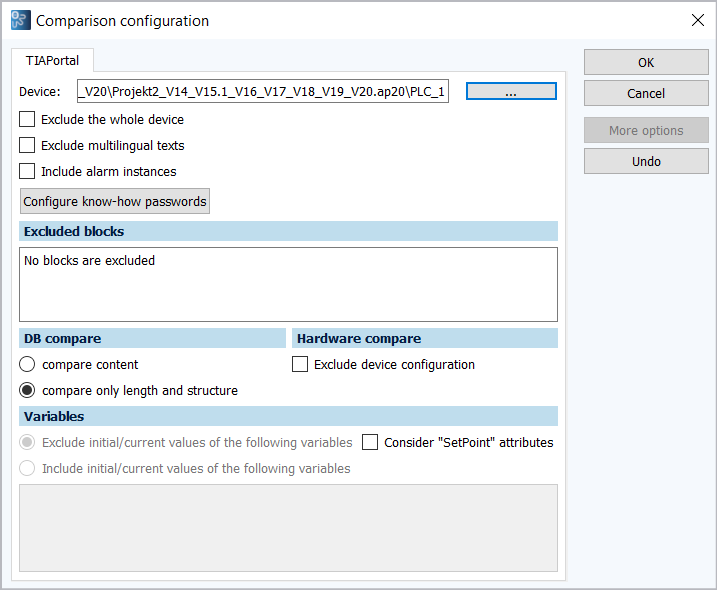
Compare blocks with activated know-how protection
Password-protected blocks can only be compared with Binary comparison. The binary comparison recognizes differences, but does not display them in detail. To allow Octoplant to access the password-protected blocks and display code, provide the know-how passwords as follows:
- Select the Configure know-how passwords button.
- Select the plus icon to add a new line.
- Type the name of the block and the know-how passwords in the corresponding fields.
- Select OK to save the configuration.
Exclude entire hardware configurations
Useful when hardware setup remains unchanged and you're only interested in software logic or configuration changes. Speeds up comparison and makes the difference report more clearer. Ideal for large projects with multiple devices where only program blocks or tags are updated.
Select the Exclude the whole device checkbox.
Include alarms configured in the project
Important when tracking changes in operator notifications, error handling, or safety-related messages. Helps ensure alarm logic and messages are correctly updated between versions. Useful in regulated industries (e.g., pharma, automotive) where alarm traceability is critical.
Select the Include alarm instances checkbox to include alarms configured in the project (e.g., PLC programs) in the comparison.
Exclude translations or text entries in multiple languages
Speeds up comparison when translations are managed separately or are not relevant to the current version. Useful when only the base language (e.g., German or English) is being updated. Reduces variance entries in the difference report when translation updates are frequent but not critical.
Select the checkbox Exclude multilingual texts to skip comparing translations or text entries in multiple languages (e.g., HMI labels, messages)
Include/exclude current values in the comparison
As of TIA Portal V15.1, you have the option of including/excluding current values in the comparison.
- In the DB compare area, activate the Compare content option.
-
If necessary, select Exclude initial/current values of variables and enter the corresponding variables.
You can define variables for inclusion or exclusion using different syntax rules.
Info
-
Do not exclude or include entire sections, variable scopes, or areas such as Static or Temp. Only actual variables (such as single variables, struct members, or array elements) can be included or excluded.
-
When specifying variable paths (such as struct members or data block references), enclose the path in quotation marks, e.g.
"Struct.Test".
- Variable by name:
Struct_Test- When specified only by name, the variable is included or excluded globally, even if it matches the name of a struct member.
- Single variable:
Test - Array element:
Array_Test[0]orArray_Test[1] - Entire array:
Array_Test[*] - Struct member:
"Struct_Test.Value_1"- The
.indicates a path. Use quotation marks around paths to include or exclude a specific member variable.
- The
- Entire struct:
"Struct_Test.*" - Specific variable in a specific data block:
"Data_Block_Name.Variable"- For example:
"Test_Block_1.Struct_Test" - This syntax also applies to arrays, structs, and struct members. For example:
"Data_Block_Name.Struct_Test.Value_1"or"Data_Block_Name.Struct_Test.*"
- For example:
Example:
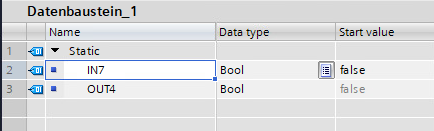
-
-
Depending on whether “SetPoint” attributes should be considered, select or clear the Consider "SetPoint" attributes checkbox.
You have the following comparison options:
- Consider "SetPoint" attributes activated: Only values with this attribute are compared, unless there are entries in the exclude/include lists. Entries in these lists take precedence over the SetPoint attribute.
- Consider "SetPoint" attributes deactivated and exclude activated (without entries): All values are compared.
- Consider "SetPoint" attributes deactivated and include activated (without entries): None of the values are compared.
When Consider "SetPoint" attributes is activated, the inclusion or exclusion of variables can also be determined by the SetPoint attribute, provided this is not already controlled by entries in the include/exclude lists.
-
Select OK to confirm.
Result behavior when using include/exclude lists
- Result list with inclusions: If an include list is configured, the job result displays only the variables explicitly listed as included. All other variables are not displayed.
- Result list with exclusions: If specific variables are excluded, the job result displays only the variables that were not excluded or omits any output for excluded variables.
Related topics